
If you’re a small business owner or freelancer, knowing how to create an invoice in QuickBooks is essential for managing your billing efficiently and ensuring timely payments. QuickBooks simplifies invoicing with its user-friendly platform, but if you’re new to the software, it can feel overwhelming at first. This guide will walk you through the process in 7 simple steps, so you can start creating professional invoices with ease.
Why Learning How to Create an Invoice in QuickBooks Matters
Invoices are the backbone of any business transaction—they communicate what your customers owe and when payment is due. QuickBooks automates much of this process, allowing you to generate invoices quickly, track payments, and stay organized. By mastering how to create an invoice in QuickBooks, you can save time, reduce errors, and improve your cash flow.
Step 1: Log In to Your QuickBooks Account
Begin by logging into your QuickBooks Online or Desktop account using your username and password. Ensure your subscription plan includes invoicing features, which most QuickBooks plans do.
Step 2: Access the Invoice Section
From your QuickBooks dashboard, navigate to the Sales or Customers menu. Click on Invoices to open the invoice management page.
Step 3: Click “Create Invoice”
On the invoice page, select Create Invoice. This opens a new blank invoice form where you will input your customer’s details and the transaction information.
Step 4: Enter Customer Details
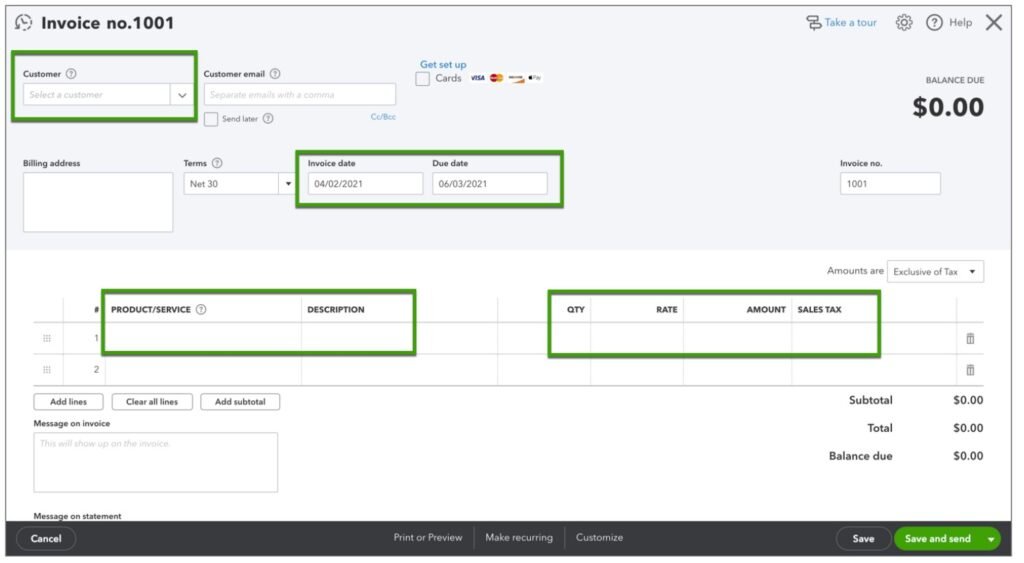
Choose an existing customer from the drop-down menu or add a new customer by entering their name, email, and contact details. Correct customer information ensures invoices reach the right recipient and improves record-keeping.
Step 5: Fill in Invoice Information
Add essential details such as:
- Invoice date
- Due date
- Invoice number (usually auto-generated)
- Product or service description
- Quantity and price per item
- Sales tax, if applicable
Double-check all entries to avoid errors that could delay payment.
Step 6: Customize Your Invoice (Optional)
QuickBooks allows you to personalize invoices by adding your company logo, payment terms, and additional notes to your customers. This step is optional but helps maintain brand consistency and clarifies expectations.
Step 7: Save and Send Your Invoice
Once satisfied, you can either save the invoice as a draft to review later or send it directly via email from QuickBooks. The system will notify you when your customer views or pays the invoice, helping you track outstanding payments.
Helpful Tips for Creating Invoices in QuickBooks
- Use recurring invoices for repeat customers to save time
- Set up automatic payment reminders to reduce late payments
- Link invoices to your bank accounts for smoother reconciliation
- Regularly review unpaid invoices and follow up promptly
Understanding these features enhances your proficiency in how to create an invoice in QuickBooks and helps you manage your business finances more effectively.
For detailed accounting practices, you can also visit the official QuickBooks Help Center which provides comprehensive support and tutorials.
Internal Resource for Better Financial Management
If you want to dive deeper into managing your small business finances, check out our detailed guide on how to use QuickBooks for small business accounting. It complements this invoicing guide perfectly by covering bookkeeping and reporting basics.
Final Thoughts
Mastering how to create an invoice in QuickBooks is a vital skill that can streamline your billing process and improve your cash flow management.
By following these simple steps, you can create professional, accurate invoices that help you get paid faster, maintain healthy customer relationships, and enhance your overall financial organization. Taking control of your invoicing not only saves time but also builds credibility with your clients, positioning your business for sustained growth and success in a competitive market.
Written by the SavvyTechPreneur Team — freelancers and small business owners sharing practical finance knowledge to support the business community.